
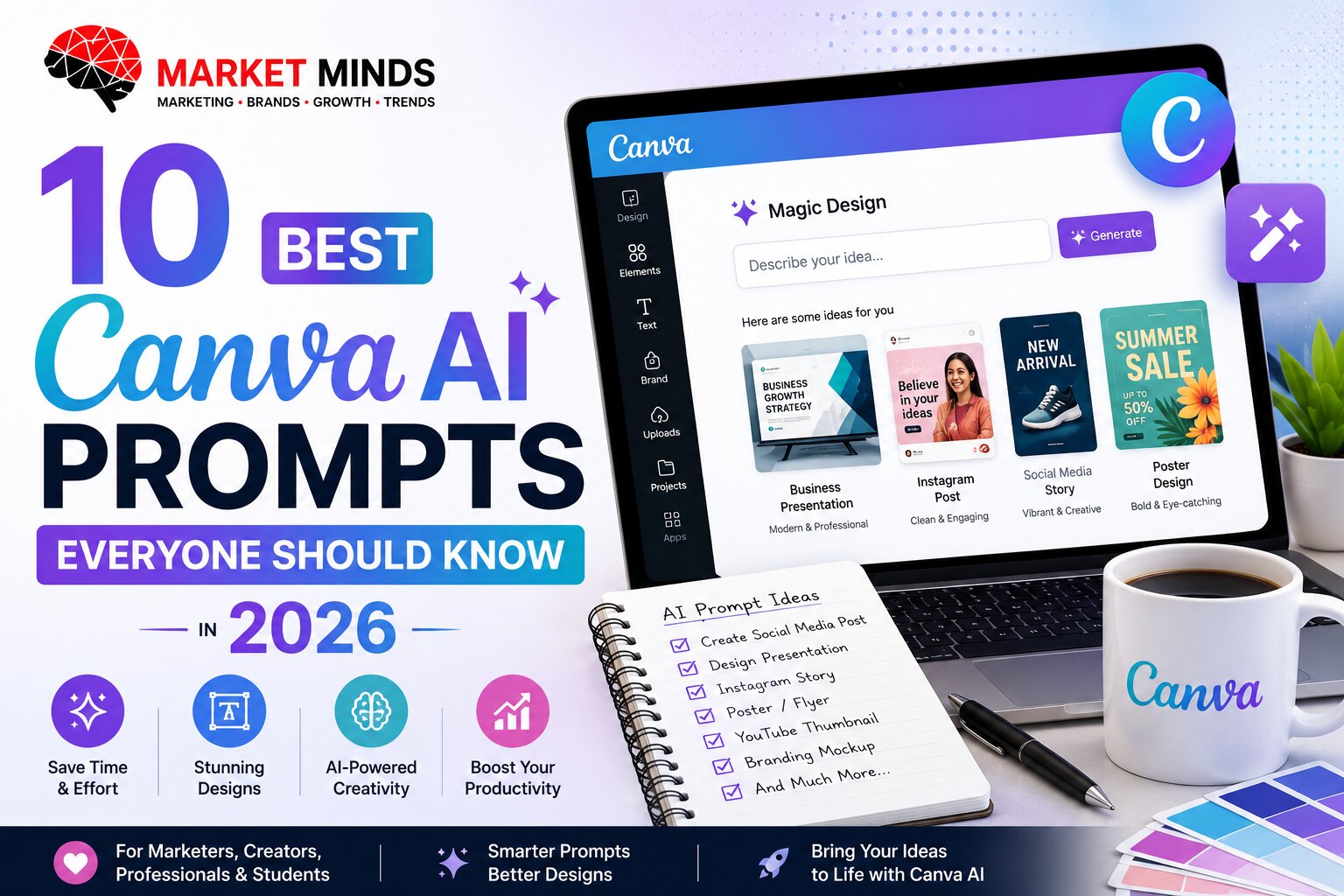
10 Best Canva AI Prompts Everyone Should Know in 2026

AI Summary
Canva AI helps users create presentations, social media posts, posters, invitations, resumes, videos and branded marketing material. These prompts are designed to produce clearer creative briefs and more relevant design outputs for personal and office use.
Introduction
Canva AI works best when users describe not only what they want to design, but also the audience, format, message, visual direction and desired action.
The following prompts can be used with Canva’s AI creation and writing features and can also serve as design briefs.
1. Create a Professional Social Media Post
Use Case
Design promotional or informative posts for Instagram, Facebook or LinkedIn.
Create a professional social media design.

Brand: [Brand Name]

Platform: [Instagram / Facebook / LinkedIn]

Post size: [Size]

Topic: [Topic]

Main headline: [Headline]

Supporting text: [Text]

Call to action: [CTA]

Audience: [Audience]

Brand colours: [Colours]

Visual style: [Minimal / Bold / Premium / Corporate]

Required visual: [Visual]

Use a clear visual hierarchy, strong headline visibility and sufficient empty space. Keep the design suitable for mobile viewing and avoid overcrowding.
2. Create a Business Presentation
Use Case
Develop a polished internal, sales or management presentation.
Create a [Number]-slide professional presentation.

Topic: [Topic]

Company: [Company]

Audience: [Audience]

Objective: [Objective]

Tone: [Tone]

Brand colours: [Colours]

Important points:

[Points]

Include:

1. Cover slide

2. Agenda

3. Problem or context

4. Key data

5. Main recommendations

6. Action plan

7. Timeline

8. Final conclusion

Use modern business layouts, readable charts, consistent typography and limited text per slide.
3. Design a Resume
Use Case
Create a clean resume for job applications.

Create a professional one-page resume design.

Candidate role: [Role]

Industry: [Industry]

Experience level: [Level]

Sections required:

[Sections]

Visual style: [Modern / Corporate / Creative]

Colour preference: [Colour]

Photo: [Include / Exclude]

Prioritise readability, ATS-friendly structure and clear section hierarchy. Avoid decorative graphics that reduce readability. Use professional typography and sufficient spacing.
4. Create an Event Invitation
Use Case
Design invitations for birthdays, weddings, office events or celebrations.
Create an elegant invitation design.

Event: [Event]

Host: [Host]

Date: [Date]

Time: [Time]

Location: [Location]

Dress code: [Dress Code]

RSVP details: [Details]

Format: [Digital / Print]

Theme: [Theme]

Colour palette: [Colours]

The invitation should feel [Elegant / Festive / Minimal / Playful]. Keep all event information easy to read and create a clear visual focus around the event name.
5. Prepare a Monthly Report Design
Use Case
Turn performance information into a professional visual report.
Create a professional monthly performance report.

Department: [Department]

Reporting period: [Period]

Audience: [Management / Client / Team]

Important metrics:

[Metrics]

Main achievements:

[Achievements]

Challenges:

[Challenges]

Next-month priorities:

[Priorities]

Create pages for:

1. Executive summary

2. KPI dashboard

3. Performance trends

4. Channel or department analysis

5. Achievements

6. Challenges

7. Recommendations

8. Action plan

Use simple charts, clear labels and a consistent corporate design.
6. Create a YouTube Thumbnail
Use Case
Design a high-visibility thumbnail for videos and podcasts.
Create a high-impact YouTube thumbnail.

Video topic: [Topic]

Main thumbnail text: [Maximum Five Words]

Person or object to feature: [Subject]

Emotion: [Emotion]

Background: [Background]

Colour direction: [Colours]

Audience: [Audience]

Style: [Professional / Dramatic / Educational / Entertaining]

Use large readable text, strong subject-background contrast and one clear focal point. Keep important content away from the bottom-right timestamp area.
7. Create a Product Advertisement
Use Case
Design a product launch, sale or performance advertisement.
Create a high-impact YouTube thumbnail.

Video topic: [Topic]

Main thumbnail text: [Maximum Five Words]

Person or object to feature: [Subject]

Emotion: [Emotion]

Background: [Background]

Colour direction: [Colours]

Audience: [Audience]

Style: [Professional / Dramatic / Educational / Entertaining]

Use large readable text, strong subject-background contrast and one clear focal point. Keep important content away from the bottom-right timestamp area.
8. Create a Personal Vision Board
Use Case
Design a visual board for yearly goals, health, career, travel and finance.
Create a personal vision board for [Year].

My goals include:

Career: [Goal]

Health: [Goal]

Finance: [Goal]

Travel: [Goal]

Relationships: [Goal]

Learning: [Goal]

Lifestyle: [Goal]

Visual style: [Style]

Colour palette: [Colours]

Words or affirmations to include:

[Words]

Create a balanced collage with clearly separated goal categories, inspirational visuals and a clean, motivating appearance.
9. Turn Text into an Infographic
Use Case
Convert complex information into a shareable visual format.
Create an informative vertical infographic.

Topic: [Topic]

Audience: [Audience]

Main information:

[Paste Information]

Format the content into:

1. Strong headline

2. Brief introduction

3. Five to seven key sections

4. Important statistic callouts

5. Simple icons

6. Final takeaway

7. Call to action

Use a clear reading sequence, short text blocks and consistent illustrations. Do not alter facts or figures.
10. Create a Short Promotional Video
Use Case
Produce a social media video for a service, product or event.
Create a [Duration]-second promotional video.

Brand: [Brand]

Product or service: [Offering]

Audience: [Audience]

Objective: [Objective]

Offer: [Offer]

Call to action: [CTA]

Format: [9:16 / 1:1 / 16:9]

Tone: [Tone]

Create the following sequence:

1. Attention-grabbing opening

2. Customer problem

3. Product or service solution

4. Main benefits

5. Proof or trust element

6. Offer

7. Final call to action

Use short on-screen text, smooth transitions and platform-appropriate pacing.